Jack has been a contributing author at MakeUseOf since June 2024, specializing in entertainment and its associated technology. He is passionate about creating engaging content that inspires and informs, having published articles and reviews in several reputable online resources since 2010, including SlashGear, BestReviews, and Ezvid Wiki. Jack's work has taken him far and wide, from South America to Europe, South Asia, and the Far East, and his experiences continue to influence his writing. As a graduate with a BA in music technology, he is particularly interested in new developments in this field, including music hardware, music creation software, and music streaming services. When he’s not researching and trying out the latest software and devices, Jack enjoys riding his motorcycles to far-flung destinations, playing guitar, and creating music and vlogs using Logic Pro and Final Cut Pro on Mac. Sign in to your MakeUseOf account Add Us Summary Generate a summary of this story Like Like follow Follow followed Followed Thread Log in Here is a fact-based summary of the story contents: Try something different: Show me the facts Explain it like I’m 5 Give me a lighthearted recap I bought my first Mac 25 years ago (an iconic iMac G4 with a whopping 512 MB of RAM), and recently unboxing my shiny new MacBook Air M5 gave me the same rush of excitement I felt back then. As I explored its features and started customizing it to suit my needs, I realized some of macOS’s most useful tools hide in menus and settings you might not think to explore. Some are relatively new, while others have been around for years.
Close Spotlight is essential for finding files and launching apps, but macOS Tahoe introduced powerful features you can use without leaving the search interface. Now, hitting Command + Space brings up expanded actions that let you do certain tasks directly from search results instead of opening individual applications.
This feature is especially useful for improving productivity at work. For example, when I'm researching an article, I might need to open a document, locate a reference file, or launch a particular app. It may sound like a simple shortcut, but being able to perform these repeated actions so fluidly within Spotlight makes a big difference over the course of a workday.
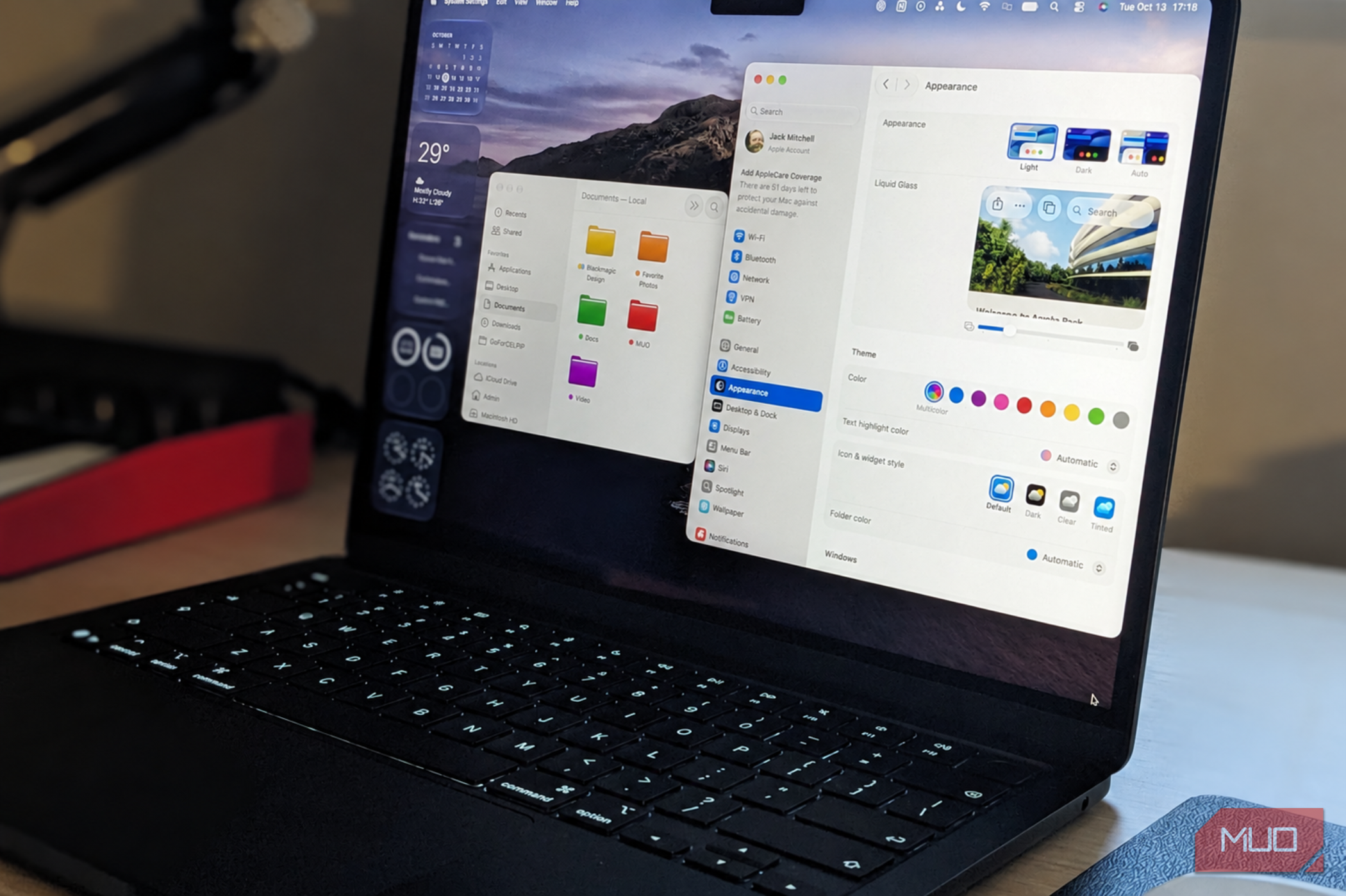
Close One of the biggest upgrades in macOS Tahoe (and iOS 26) was Liquid Glass, Apple’s redesigned interface that relies on layers and features translucent elements, as the name suggests. You can customize it to suit your preferences instead of settling for the default design, including switching between light and dark appearances, customizing supported app icons, and changing folder appearances.
Because I regularly work with research, screenshots, and article drafts, I like being able to assign different colors to different types of work. This feature makes Finder feel more intuitive and organized, rather than a collection of identical-looking files. While not strictly a productivity tool, Liquid Glass's custom aesthetics and organization make a big difference to the overall work experience.
Liquid Glass is even more customizable and adjustable in macOS Golden Gate. To get started, right-click a folder in Finder to explore its customization options, or go to System Settings > Appearance to adjust macOS's overall aesthetic.
One of my favorite features in Google Chrome is the Split View function, which divides my browser into two windows, say, for writing and research. Here, macOS goes a step further with window tiling, which is ideal for multitasking because it lets me arrange various applications side by side or across the desktop.
I can drag a window towards the edge of the screen to position it, or choose from available layouts by hovering over the green window button in the top-left corner. This is particularly useful when researching a project. I can keep reference material visible while drafting, compare information across two browser windows, or consult my notes without repeatedly minimizing applications.
![Zapier vs. Tray comparison: Which is best for enterprise automation? [2026]](https://images.ctfassets.net/lzny33ho1g45/1yB55KkctBPlYi9okoXbAw/c54021a84c3dd00d7cf7ae7857e85f84/zapier-vs-tray-hero.jpg)